Best IPTV Apps for Smart TV (2026): Samsung & LG Tested
Best IPTV Apps for Smart TV (2026): Samsung Tizen, LG webOS & Android TV Tested
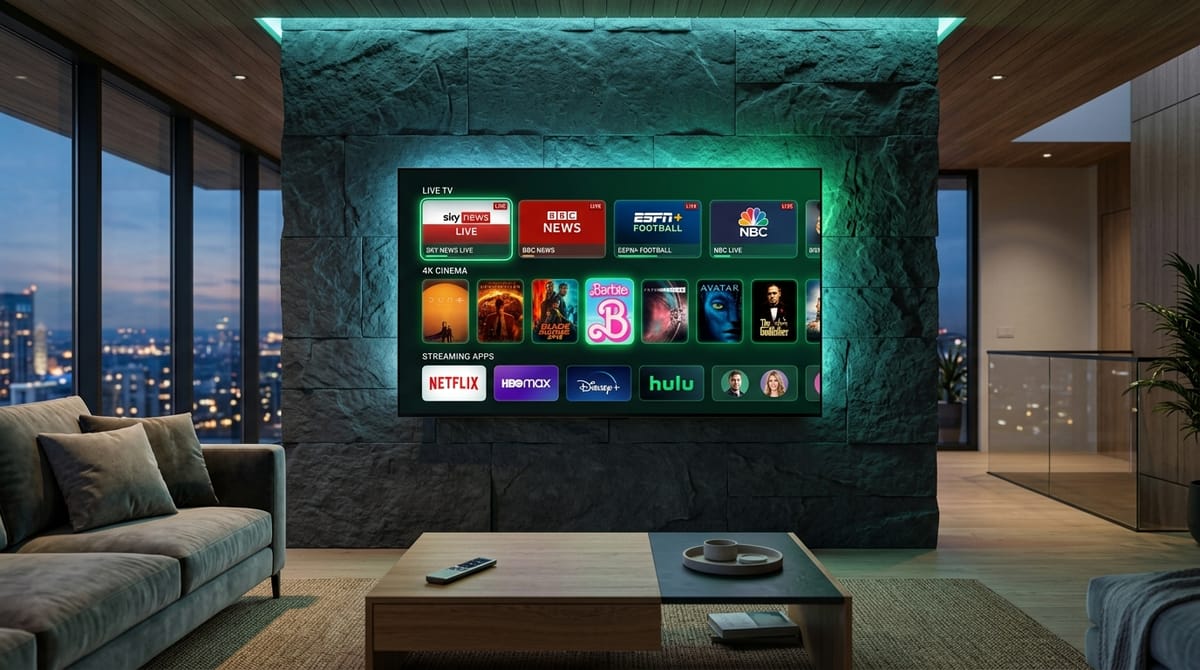
Smart televisions have fundamentally transformed modern living rooms into self-contained digital entertainment hubs. With stunning 4K OLED, Neo QLED, QD-OLED, and Mini-LED displays powered by dedicated neural processing units, modern televisions from industry leaders such as Samsung, LG, Sony, TCL, and Hisense are capable of delivering cinema-grade visual fidelity. Naturally, viewers who subscribe to high-definition streaming services like Zenora IPTV want to experience their favorite live sports passes, 4K HDR movie broadcasts, and international news channels directly through their television's native interface without cluttering their entertainment console with external streaming dongles, power adapters, and secondary remote controls.
However, operating an IPTV application directly on a Smart TV introduces complex engineering and software challenges that do not exist on dedicated external streaming hardware such as an Apple TV 4K or Amazon Fire TV Stick 4K Max. Smart TV operating systems—predominantly Samsung Tizen OS, LG webOS, and Google TV / Android TV—possess radically divergent application architectures, system-on-chip (SoC) computational budgets, audio codec licensing restrictions, and volatile memory allocations. An IPTV player that executes with blistering responsiveness on a Sony Bravia powered by Google TV might not even exist in the Samsung Smart Hub catalog. Meanwhile, a widely deployed player on LG webOS might suffer from audio muting due to discontinued DTS decoders, or abruptly crash to the home screen when attempting to parse a massive 60,000-item playlist.
To achieve continuous, buffer-free playback, sub-second channel zapping, and responsive Electronic Program Guide (EPG) rendering, you must select an IPTV player application tailored specifically to the computational constraints and operating environment of your television.
In this exhaustive 2026 technical guide, we evaluate the best IPTV apps for Smart TVs across Samsung Tizen, LG webOS, and Android TV. We examine the architectural differences between web-based sandbox players and native Android runtimes, dissect the web portal MAC activation model, diagnose audio and video codec incompatibilities, demonstrate proven memory optimization techniques for expansive playlists, and provide a definitive decision matrix to help you determine whether your television's native hardware is sufficient or if an external streaming device is required.
Smart TV Architecture: Why Native IPTV Streaming is Unique
To understand why certain IPTV players excel while others falter on Smart TVs, one must analyze the physical hardware and operating system constraints governing modern smart displays.
+-----------------------------------------------------------------------------+
|                     SMART TV INTERNAL SYSTEM ARCHITECTURE                   |
+-----------------------------------------------------------------------------+
|  1. DISPLAY PANEL & PROCESSOR  : 4K/8K Panel + Video Processing SoC         |
|                                  (AI Upscaling, Motion Flow, HDR Tone Map)   |
|  2. SYSTEM MEMORY (RAM)        : 1.0 GB to 2.5 GB Total Shared Memory        |
|                                  (OS reserved: 65% / Available for Apps: 35%)|
|  3. PLATFORM RUNTIME           : Tizen (WebKit) / webOS (Chromium) / Android|
|  4. MEDIA DECODER PIPELINE     : Hardwired Silicon Decoders (HEVC, AVC, VP9)|
|                                  Audio Decoders (Dolby AC3, AAC, PCM)       |
|  5. NETWORK INTERFACE          : 100 Mbps Fast Ethernet Port OR 5 GHz Wi-Fi  |
+-----------------------------------------------------------------------------+
1. Television SoCs Prioritize Picture Processing Over Application Execution
Unlike external streaming hardware (such as an Apple TV with an A15 Bionic processor or a Fire TV Cube with an octa-core chipset), the primary silicon inside a Smart TV is an image processor—such as Samsung's Neural Quantum Processor or LG's Alpha 9 AI Engine. These chips are engineered specifically for real-time video upscaling, motion interpolation (soap opera smoothing), dynamic tone mapping, and panel backlight management.
General-purpose computational cores are secondary. The central processing unit (CPU) allocated for running the TV operating system and third-party applications is frequently a low-power, quad-core ARM Cortex-A53 or A55 clocked at modest frequencies (1.1 GHz to 1.5 GHz). When an IPTV application demands substantial CPU resources to decompress, parse, and render a 50 MB XMLTV EPG guide or uncompress an M3U playlist with 70,000 live streams, the TV's processor can easily become saturated, leading to interface lag or complete app freezing.
2. The Volatile Memory (RAM) Bottleneck
System memory on Smart TVs is notoriously constrained compared to modern mobile devices or personal computers:
- Budget Smart TVs (Hisense, TCL, entry-level Samsung/LG): Typically contain 1.0 GB to 1.5 GB of total system RAM.
- Mid-Range to High-End OLED/QLED TVs: Feature 2.0 GB to 2.5 GB of total RAM.
Crucially, the television's underlying operating system, broadcast tuners, network drivers, and active image processing filters consume between 60% and 75% of this memory continuously. Third-party applications downloaded from the Smart Hub or LG Content Store are frequently restricted to a strict memory budget—often between 350 MB and 500 MB of usable RAM. If an IPTV player consumes more memory than its assigned quota while indexing channel lists or buffering live feeds, the operating system's kernel out-of-memory (OOM) killer will immediately terminate the application, dumping the viewer back to the TV's home dashboard without an error message.
3. Native Sandboxing vs Direct Native Execution
On Samsung Tizen and LG webOS, applications are not compiled to native machine binaries. Instead, they run inside a sandboxed web engine:
- Samsung Tizen: Executes web applications inside an isolated WebKit sandbox utilizing HTML5, CSS, and ECMAScript.
- LG webOS: Executes applications within an optimized Chromium-based web container.
Because the player is essentially operating as a specialized, full-screen web browser application, each video stream must be piped through the browser engine's HTML5 <video> tags and media source extensions (MSE) before passing to the TV's hardware decoder. This web abstraction layer introduces computational overhead that does not exist in native C/C++ or Android Java runtimes.
Conversely, televisions powered by Android TV or Google TV (such as Sony Bravia, newer Philips, and TCL Google TV editions) run a true native Android operating system. Applications interact directly with Android's MediaCodec API and low-level graphics subsystems, unlocking vastly superior rendering performance and support for advanced player architectures like TiviMate.
Operating System Breakdown: Samsung Tizen vs LG webOS vs Android TV
Selecting the correct IPTV application begins with identifying the precise operating system powering your television. Many consumers mistakenly assume that all modern televisions share a standardized app ecosystem. In reality, the three major platforms are completely incompatible with one another.
+-----------------------------------------------------------------------------+
|                  SMART TV OPERATING SYSTEM COMPARISON MATRIX                |
+-----------------------------------------------------------------------------+
| FEATURE / CRITERIA      | SAMSUNG TIZEN       | LG WEBOS        | GOOGLE/ANDROID TV |
+-------------------------+---------------------+-----------------+-------------------+
| Primary Manufacturers   | Samsung             | LG              | Sony, TCL, Hisense|
| Runtime Architecture    | WebKit Web Runtime  | Chromium Web RT | Android Runtime   |
| Official App Store      | Samsung Smart Hub   | LG Content Store| Google Play Store |
| APK Sideloading Allowed?| Strictly Impossible | Strictly Blocked| Fully Supported   |
| Remote Navigation       | D-Pad Smart Remote  | Magic Gyro Mote | Standard D-Pad    |
| Top Recommended Player  | IBO Player          | IBO Player      | TiviMate Premium  |
| Backup Recommended Player| Nanomid / SIPTV    | Nanomid / Flix  | Smarters Pro      |
| DTS Audio Passthrough   | Discontinued (2018+)| Discontinued    | Supported (SoC)   |
| Hardware RAM Ceiling    | 1.0 GB - 2.0 GB     | 1.5 GB - 2.5 GB | 2.0 GB - 3.5 GB   |
+-----------------------------------------------------------------------------+
1. Samsung Smart TVs: Tizen OS
Samsung is the world's highest-volume television manufacturer. All modern Samsung displays—from entry-level Crystal UHD models to flagship Neo QLED 8K and QD-OLED screens—operate on Tizen OS.
- App Ecosystem: Tizen apps are distributed solely via the official Samsung Smart Hub.
- Sideloading Restrictions: Samsung strictly prohibits sideloading Android APK files. You cannot plug in a USB flash drive containing an Android installation package and install it on a Samsung television. While Tizen does feature a Developer Mode that allows sideloading compiled
.wgt(Tizen widget) packages via command-line tools on a connected PC, this process is technically demanding, requires annual developer certificate renewals, and is impractical for everyday users. - Navigation: Modern Samsung Smart Remotes feature a streamlined layout with a directional D-pad, Back, Home, and Play/Pause keys. Players must be designed to respond seamlessly to these standardized media key inputs.
- Top Apps: IBO Player, Smart IPTV (SIPTV), Nanomid Player, and Net IPTV.
2. LG Smart TVs: webOS
LG OLED displays (including the legendary C-series and G-series) and QNED/NanoCell LED screens run webOS, an operating system initially created by Palm and later re-engineered by LG for connected appliances and displays.
- App Ecosystem: Applications must be installed directly from the LG Content Store (designated simply as "Apps" in webOS 23 and webOS 24).
- Sideloading Restrictions: Like Samsung, LG webOS is fundamentally incompatible with Android APKs. Installing third-party software outside the LG Content Store requires activating webOS Developer Mode via an LG developer account and maintaining an active session key, which automatically expires every 50 hours unless refreshed via automated terminal scripts. Consequently, virtually all LG owners rely on verified Content Store applications.
- The Magic Remote Advantage: webOS features unique integration with LG's Magic Remote, which incorporates an internal gyroscope and optical sensor to project an on-screen mouse cursor. Premium IPTV apps on webOS take advantage of this feature, allowing users to point directly at channels, drag scrollbars, and click menu settings with desktop-like speed.
- Top Apps: IBO Player, Smart IPTV, Flix IPTV, and Nanomid.
3. Sony, TCL, Hisense & Philips: Android TV and Google TV
Televisions manufactured by Sony (Bravia OLED and Mini-LED), TCL, Hisense (select series), and Philips feature Google's Android TV or Google TV platform.
- App Ecosystem: Users have native access to the Google Play Store, housing thousands of television-optimized applications.
- Sideloading Freedom: Because these televisions run a full Android runtime, users enjoy unrestricted freedom to sideload third-party applications. By installing tools like the Downloader app from the Play Store, owners can directly download and install any television-compatible Android APK.
- Hardware & Software Synergy: Android TV displays operate independently of the web-sandbox limitations found on Tizen and webOS. They support low-level hardware decoders, advanced dynamic buffer caching, multi-window split-screen viewing, and local USB recording.
- Top Apps: TiviMate Premium, IPTV Smarters Pro, and OTT Navigator.
Detailed Evaluation: The Best IPTV Apps for Smart TV in 2026
We tested dozens of native Smart TV players across Samsung Neo QLED, LG C3 OLED, and Sony Bravia Google TV displays using active Zenora IPTV subscription packages delivering 50,000+ live 4K/FHD channels and 200,000+ on-demand movies. Below are our comprehensive evaluations of the top 7 performers.
+-----------------------------------------------------------------------------+
|                       SMART TV PLAYER RANKINGS AT A GLANCE                  |
+-----------------------------------------------------------------------------+
|  RANK | APPLICATION NAME   | PRIMARY PLATFORMS      | RATING  | PRICING     |
+-------+--------------------+------------------------+---------+-------------+
|  #1   | IBO Player         | Samsung Tizen, LG webOS| 9.6/10  | €8 Lifetime |
|  #2   | Nanomid Player     | Samsung, LG, Android   | 9.2/10  | €9.99 Life  |
|  #3   | Smart IPTV (SIPTV) | Samsung, LG, Android   | 8.5/10  | €5.49 Life  |
|  #4   | Flix IPTV          | Samsung, LG, Android   | 8.4/10  | €7.99 Life  |
|  #5   | Net IPTV           | Samsung, LG            | 7.9/10  | €5.79 / 2yr |
|  #6   | SS IPTV            | LG, Samsung (Legacy)   | 7.2/10  | Free (Ads)  |
|  #7   | TiviMate Premium   | Android TV / Google TV | 9.9/10  | $34.99 Life |
+-----------------------------------------------------------------------------+
1. IBO Player: The Undisputed Gold Standard for Samsung & LG
+-----------------------------------------------------------------------------+
|                     IBO PLAYER TECHNICAL SPECIFICATIONS                     |
+-----------------------------------------------------------------------------+
| Developer           | IBO Software Solutions                                |
| Official Website    | iboplayer.com                                         |
| Platform Support    | Samsung Tizen, LG webOS, Android TV, Fire OS, Apple TV|
| Supported Protocols | Xtream Codes API, M3U / M3U8 Playlist, MAC Portal    |
| Audio Decoding      | ExoPlayer / VLC Core (Dolby Digital AC3, AAC, MP3)    |
| Activation Model    | 7-Day Free Trial -> ~€8.00 One-Time Lifetime License  |
| Overall Score       | 9.6 / 10 (Editor's Choice for Tizen and webOS)        |
+-----------------------------------------------------------------------------+
IBO Player has firmly established itself as the premier IPTV application across both the Samsung Smart Hub and LG Content Store. While older legacy players have suffered from developer abandonment or UI stagnation, IBO Player receives continuous firmware compatibility updates, maintaining peak performance across successive generations of Smart TV platforms.
Architecture & User Interface
IBO Player replaces the dated, text-heavy channel lists of legacy apps with a contemporary streaming dashboard inspired by modern on-demand platforms. Upon launching the application, users are greeted by categorized portals:
- Live TV: Organized into country-specific bouquets with channel logos, current program names, and real-time progress bars.
- Movies (VOD): Displays high-resolution cover artwork, production release years, IMDb rating badges, genre tags, and comprehensive synopsis cards.
- TV Series: Structured logically into multi-season collapsible hierarchies with individual episode descriptions, thumbnails, and playback progress tracking.
Technical Performance & Decoding Engine
IBO Player integrates modern video playback libraries capable of requesting hardware-accelerated video decoding directly from the television's SoC:
- Instant Channel Switching: When paired with the high-speed server infrastructure of Zenora IPTV, channel zapping latency averages between 0.9 and 1.4 seconds, significantly faster than rival web-sandbox players.
- Audio Track & Subtitle Selectors: An intuitive in-playback overlay menu allows viewers to switch commentary audio tracks on live sports feeds (such as English, French, Spanish, or Arabic commentary) with two remote clicks.
- EPG Integration: Loads XMLTV program guides with minimal RAM overhead. The TV guide timeline is fluid, allowing users to review upcoming schedules 48 hours in advance without memory stutter.
Licensing & Setup
- Trial Period: Fully functional 7-day evaluation period automatically begins upon first installation.
- Pricing: A one-time activation fee of approximately €8.00 (~$8.75 USD) grants a permanent lifetime license linked directly to your television's hardware MAC address. There are no recurring monthly charges.
- Setup: Configuration is handled entirely via the remote web management portal at
iboplayer.com.
2. Nanomid Player: Premium Codec Support & Cloud Playlist Sync
+-----------------------------------------------------------------------------+
|                   NANOMID PLAYER TECHNICAL SPECIFICATIONS                   |
+-----------------------------------------------------------------------------+
| Developer           | Nanomid Technologies                                  |
| Official Website    | nanomid.com                                           |
| Platform Support    | Samsung Tizen, LG webOS, Android TV, iOS              |
| Supported Protocols | Xtream Codes API, M3U / M3U8 Plus, HTTP/SOCKS5 Proxy  |
| Audio Decoding      | Custom Media Pipeline (Enhanced AC3/E-AC3/AAC Engine) |
| Activation Model    | Free Trial -> ~€9.99 One-Time Lifetime License        |
| Overall Score       | 9.2 / 10 (Best for Audio Decoding & VPN Integration)  |
+-----------------------------------------------------------------------------+
Nanomid Player is an advanced, performance-focused IPTV client designed specifically for discerning users who encounter audio desynchronization, missing sound, or ISP throttling when streaming on native Smart TV operating systems.
Proprietary Audio Engine & Codec Solving
The standout architectural advantage of Nanomid Player is its proprietary media decoding pipeline. While standard Smart TV players rely entirely on the television manufacturer's native media decoders—which leads to complete audio silence when streams broadcast in unsupported formats like DTS or specific variants of Dolby Digital Plus—Nanomid includes customized software audio conversion routines. If your Smart TV hardware refuses to decode an incoming audio transport stream, Nanomid can transcode the audio on-the-fly, ensuring crystal-clear sound across all channels and movies.
Built-in Proxy & VPN Routing
Smart TVs running Samsung Tizen and LG webOS do not natively support commercial VPN applications (such as NordVPN or ExpressVPN). If an Internet Service Provider (ISP) enforces aggressive bandwidth throttling during high-profile Premier League, UEFA Champions League, or NFL events, Smart TV owners are typically helpless unless they configure complex VPN tunnels on their home routers.
Nanomid solves this dilemma by including built-in HTTP and SOCKS5 proxy configuration fields directly within its internal network settings. Users can input proxy server credentials inside the app, routing encrypted IPTV video traffic around ISP deep-packet inspection (DPI) filters directly on their television.
Cloud Synchronization
Nanomid features a centralized cloud database. By creating a Nanomid account, subscribers can manage multiple playlists, customize channel orders, and create cross-device favorites on a PC web browser. Changes made in the cloud portal reflect instantaneously on your Samsung or LG screen.
Pricing:
- Offers a free introductory trial, followed by a one-time lifetime license fee of €9.99 (~$10.50 USD) per device.
3. Smart IPTV (SIPTV): The Historic Pioneer
+-----------------------------------------------------------------------------+
|                     SMART IPTV TECHNICAL SPECIFICATIONS                     |
+-----------------------------------------------------------------------------+
| Developer           | InfoMir / SIPTV Team                                  |
| Official Website    | siptv.app                                             |
| Platform Support    | Samsung Tizen, LG webOS, Android TV                   |
| Supported Protocols | M3U / M3U8, XMLTV EPG                                 |
| Memory Footprint    | Ultra-compact (< 50 MB RAM consumption)               |
| Activation Model    | 7-Day Free Trial -> €5.49 One-Time Activation Fee     |
| Overall Score       | 8.5 / 10 (Best for Older or Low-Memory Smart TVs)     |
+-----------------------------------------------------------------------------+
Launched over a decade ago, Smart IPTV (commonly referred to by its abbreviation SIPTV) was the pioneering application that proved high-definition IPTV streams could be enjoyed on connected televisions without set-top boxes.
Ultra-Low Memory Footprint
SIPTV was coded with exceptional algorithmic efficiency. Its entire compiled package is minuscule, and its runtime memory consumption rarely exceeds 50 MB of system RAM. Because of this minimalist footprint, SIPTV launches instantaneously and remains rock-solid on older 2017–2020 Smart TVs whose aging dual-core or quad-core processors choke on modern, graphic-intensive interfaces.
Interface & Limitations
The primary trade-off with Smart IPTV is its visual presentation:
- Spartan UI: SIPTV displays a text-based, two-column channel list reminiscent of traditional satellite receivers from the early 2000s. It lacks VOD poster walls, actor filmography indexes, and animated category sidebars.
- M3U Dependency: Unlike modern apps that interface with the Xtream Codes API database, SIPTV parses playlists primarily as static M3U text files. If your playlist contains tens of thousands of channels, uploading it to SIPTV without filtering can cause sluggish list scrolling.
- Store Availability: Due to changing app store guidelines, SIPTV is occasionally removed from specific regional Samsung Smart Hub stores. When this occurs, Samsung users must download the SIPTV application archive onto a USB flash drive, enable Developer Mode, and perform manual installation.
Pricing:
- 7-day free trial, followed by a one-time activation cost of €5.49 (~$6.00 USD) per television MAC address.
4. Flix IPTV & Bay TV: Modern VOD-Focused Players
+-----------------------------------------------------------------------------+
|                     FLIX IPTV TECHNICAL SPECIFICATIONS                      |
+-----------------------------------------------------------------------------+
| Developer           | Flix Entertainment Systems                            |
| Official Website    | flixiptv.cc                                           |
| Platform Support    | Samsung Tizen, LG webOS, Android TV, Fire OS          |
| Supported Protocols | Xtream Codes API, M3U URLs                            |
| Video Players       | Dual Engine (Hardware Player + Internal VLC Core)     |
| Activation Model    | 7-Day Free Trial -> €7.99 One-Time Lifetime Fee       |
| Overall Score       | 8.4 / 10 (Best for Heavy On-Demand Movie Viewers)     |
+-----------------------------------------------------------------------------+
For viewers whose entertainment habits tilt heavily toward on-demand video—bingeing complete multi-season television series, 4K Hollywood blockbusters, and foreign cinema—Flix IPTV and its sister application Bay TV represent polished, visually striking options.
Visual Architecture & Customization
Flix IPTV presents an interface modeled closely after mainstream subscription video-on-demand (SVOD) platforms:
- Dynamic Poster Grids: High-resolution movie posters load smoothly with responsive hover effects.
- Comprehensive Metadata: Displays release year, duration, parental rating, audio channels, and director information alongside IMDb star ratings.
- Subtitles & Audio: Excels at external subtitle management, allowing viewers to adjust subtitle size, background contrast, and vertical positioning during playback—an essential feature for foreign-language films.
- Custom Themes: Users can choose from multiple background color themes, adapting the interface from midnight black to deep navy or emerald green to complement room lighting.
Pricing:
- 7-day free evaluation, followed by a one-time lifetime license fee of €7.99 (~$8.50 USD).
5. Net IPTV & Set IPTV: Lightweight Solutions for Budget Displays
+-----------------------------------------------------------------------------+
|                      NET IPTV TECHNICAL SPECIFICATIONS                      |
+-----------------------------------------------------------------------------+
| Developer           | Net IPTV Net Developer Group                          |
| Official Website    | netiptv.eu                                            |
| Platform Support    | Samsung Tizen, LG webOS, Android TV                   |
| Supported Protocols | M3U, Xtream Codes Credentials                         |
| Multi-Playlist      | Up to 4 Simultaneous Subscription Playlists           |
| Activation Model    | 7-Day Trial -> €5.79 (24 Months) or €13.79 (Lifetime) |
| Overall Score       | 7.9 / 10 (Dependable Secondary TV Option)             |
+-----------------------------------------------------------------------------+
Net IPTV and Set IPTV are streamlined, utility-first media applications designed to deliver reliable channel streaming with zero unnecessary graphical overhead.
Key Strengths:
- Multi-Playlist Handling: Net IPTV allows users to upload up to four distinct playlist sources simultaneously via its
netiptv.euweb portal. This is ideal for subscribers who maintain a primary live sports subscription alongside a secondary backup service. - Numeric Keypad Navigation: If your television remote features physical 0–9 number keys, Net IPTV maps channel numbers directly, allowing you to jump immediately to channel "402" without scrolling through alphabetical bouquets.
Weaknesses:
- The VOD interface is rudimentary, lacking automatic episode bookmarking and resume-playback memory.
- The pricing model requires €5.79 for a 2-year activation or €13.79 for a permanent license, which is somewhat higher than more feature-rich competitors like IBO Player.
6. SS IPTV: The Free, Ad-Supported Option
+-----------------------------------------------------------------------------+
|                       SS IPTV TECHNICAL SPECIFICATIONS                      |
+-----------------------------------------------------------------------------+
| Developer           | SS IPTV Team                                          |
| Official Website    | ss-iptv.com                                           |
| Platform Support    | LG webOS, Select Samsung Smart TVs, Android           |
| Supported Protocols | M3U, XSPF, Internal Temporary Connection Codes        |
| Cost                | 100% Free (Supported by Banner Ads)                   |
| Overall Score       | 7.2 / 10 (Best Zero-Cost Entry Solution)              |
+-----------------------------------------------------------------------------+
For viewers seeking a completely free solution without paying license activation fees, SS IPTV (Simple Smart IPTV) is a well-known legacy application available across many LG and Samsung regional application catalogs.
Key Characteristics:
- Zero License Fees: The application is entirely free to download and use indefinitely.
- Temporary Connection Codes: Rather than requiring complex MAC addresses, SS IPTV can generate an 8-character numeric one-time code on your TV screen. Entering this code on
ss-iptv.comlinks your playlist instantly.
Why We Rate It Lower:
- Banner Advertising: The home screen contains static banner advertisements that clutter the display.
- Older Video Libraries: SS IPTV has not received comprehensive video pipeline overhauls in recent years. When fed high-bitrate 60 fps 4K streams from Zenora IPTV channels, the player can suffer from frame pacing stutters, micro-judder during fast-moving athletic broadcasts, and occasional crashes on high-resolution streams.
7. TiviMate Premium & Smarters Pro: The Android TV Exclusives
+-----------------------------------------------------------------------------+
|                TIVIMATE PREMIUM (ANDROID TV EXCLUSIVE POWERHOUSE)           |
+-----------------------------------------------------------------------------+
| Compatibility       | Sony Bravia, TCL Google TV, Hisense, Philips Android  |
| User Interface      | Fully Customizable 4K Broadcast TV Guide Grid         |
| Advanced Features   | 9-Screen Multi-View, Auto Frame Rate (AFR), USB DVR   |
| Pricing             | $10.99/yr OR $34.99 One-Time Lifetime License         |
| Overall Score       | 9.9 / 10 (The Greatest Television Player Ever Built)  |
+-----------------------------------------------------------------------------+
If your Smart TV is manufactured by Sony, TCL, Philips, or Hisense and runs Google TV or Android TV, you are not limited to web-sandbox players. You have direct access to the absolute gold standard of television streaming software: TiviMate IPTV Player.
As detailed extensively in our best IPTV apps for Firestick & Android guide, TiviMate represents the pinnacle of digital television engineering:
- Studio-Grade EPG Guide: Features a responsive, cable-box style electronic program guide grid with fluid timeline scrolling and instant picture-in-picture preview windows.
- Multi-View Screen Splitting: Run up to 9 live television broadcasts simultaneously on a single 4K display. On high-end Sony Bravia or TCL displays with robust processors, viewing 4 concurrent sports matches without dropped frames is effortlessly achieved.
- Automated USB DVR Recording: Attach an external USB hard drive or flash drive to your television's USB 3.0 port and schedule scheduled recordings of live broadcasts, series passes, and sports matches with custom start/end time padding.
- Auto Frame Rate (AFR) Matching: Automatically switches your television's display panel refresh rate between 24 Hz, 50 Hz, and 60 Hz to match the native broadcast cadence, eliminating motion judder completely.
If you own an Android TV display, install TiviMate directly from the Google Play Store. If you own a Samsung or LG display, TiviMate cannot be installed natively; you must connect an external streaming device (such as an Amazon Firestick 4K Max or Chromecast with Google TV) to access it.
The Web Portal MAC Activation Model: How It Works
Because typing long, complex alphanumeric server URLs, usernames, and 24-character cryptographic passwords using a standard television remote control is tedious and prone to typing errors, native Smart TV apps rely almost exclusively on the Web Portal MAC Activation Model.
Understanding this workflow demystifies the installation process:
+-----------------------------------------------------------------------------+
|                     WEB PORTAL ACTIVATION FLOW DIAGRAM                      |
+-----------------------------------------------------------------------------+
|                                                                             |
|  [ Step 1: TELEVISION ]                                                     |
|  Launch IBO Player on Smart TV                                              |
|  Screen displays: MAC: 00:1A:79:B2:4C:1F  |  Device Key: 482910             |
|                          |                                                  |
|                          v                                                  |
|  [ Step 2: COMPUTER OR SMARTPHONE ]                                         |
|  Open Web Browser -> Navigate to: https://iboplayer.com/device/login        |
|  Input MAC Address & Device Key -> Click "Login"                            |
|                          |                                                  |
|                          v                                                  |
|  [ Step 3: UPLOAD CREDENTIALS ]                                             |
|  Click "Add XC Playlist"                                                    |
|  Enter Server URL, Username, Password from Zenora IPTV setup email          |
|  Click "Save Playlist"                                                      |
|                          |                                                  |
|                          v                                                  |
|  [ Step 4: DEVELOPER CLOUD SYNC ]                                           |
|  Developer Server securely caches playlist pointer mapping to TV MAC        |
|                          |                                                  |
|                          v                                                  |
|  [ Step 5: TELEVISION RELOAD ]                                              |
|  Click "Reload" or "Refresh" button on TV remote                            |
|  TV queries developer cloud -> Downloads channel database & EPG             |
|  Complete 50,000+ channel catalog appears on your TV screen!                |
|                                                                             |
+-----------------------------------------------------------------------------+
Step-by-Step Execution Guide:
- Download the App: Navigate to the Samsung Smart Hub or LG Content Store, search for IBO Player (or your chosen player), and click Install.
- Launch & Record Credentials: Open the app. The initialization screen will display two critical identifiers:
- Device MAC Address: A 12-character hexadecimal address formatted as
XX:XX:XX:XX:XX:XX. Note: This is an internal virtual application MAC generated by the app, not necessarily your TV's physical Wi-Fi hardware MAC. Always use the exact MAC displayed inside the app. - Device Key / PIN: A dynamic 6 to 8-digit security key generated to prevent unauthorized playlist uploads.
- Device MAC Address: A 12-character hexadecimal address formatted as
- Access the Portal: Open a web browser on your smartphone, tablet, or laptop and visit the developer's official device management portal (e.g.,
https://iboplayer.com/device/login). - Authenticate: Type the TV's displayed MAC Address and Device Key into the portal fields and click Log In.
- Add Subscription Information:
- Click the Add XC Playlist (Xtream Codes) button.
- In the Playlist Name field, type
Zenora IPTV. - In the Server URL, Username, and Password fields, copy and paste the credentials provided in your Zenora IPTV order confirmation.
- Click Save / Submit.
- Refresh Your Television: Return to your television remote and click the on-screen Reload or Refresh icon. Within 5 to 10 seconds, the app will download your live bouquets, VOD posters, and TV guide data.
M3U vs Xtream Codes API on Smart TVs: Why API Protocol Matters
When configuring an IPTV subscription on a Smart TV application, you will typically be prompted to choose between two input methods: M3U Playlist URL or Xtream Codes API.
On personal computers or high-end external streaming boxes with 4 GB to 16 GB of RAM, both protocols function adequately. However, on resource-constrained Smart TVs, the choice of protocol directly determines whether your television streams smoothly or crashes repeatedly.
+-----------------------------------------------------------------------------+
|                   M3U PLAYLIST VS XTREAM CODES API ON SMART TV              |
+-----------------------------------------------------------------------------+
| PERFORMANCE METRIC     | STATIC M3U PLAYLIST        | XTREAM CODES API       |
+------------------------+----------------------------+------------------------+
| Data Transfer Model    | Bulk monolithic download   | On-demand targeted API |
| File Size Transferred  | 25 MB to 80 MB plain text  | < 50 KB per category   |
| Initial Launch Time    | 20 to 60+ seconds          | 2 to 4 seconds         |
| TV Memory Consumption  | High (Parses entire file)  | Negligible (< 20 MB)   |
| VOD Metadata Quality   | Basic text title only      | Posters, Cast, Synopsis|
| Stream Token Renewal   | Static in URL string       | Dynamic session auth   |
| Recommendation         | Avoid on Smart TVs         | MANDATORY FOR STABILITY|
+-----------------------------------------------------------------------------+
The Technical Flaws of M3U on Smart TVs
An M3U file is a massive, linear text document. A comprehensive subscription service like Zenora IPTV provides access to over 50,000 live streams and 200,000 on-demand titles. The resulting M3U document can exceed 60 megabytes of raw text containing hundreds of thousands of lines of URLs, channel tags, and logos.
When a Smart TV player attempts to load an M3U URL:
- The TV's modest network stack must download the complete 60 MB text file into temporary memory.
- The low-power CPU must run a string parser across every single line, splitting text by commas, extracting channel names, grouping tags, and stream URLs.
- The parsed data must be held simultaneously in volatile RAM while building the graphical user interface.
- The Result: System RAM is completely exhausted. The TV interface becomes sluggish, channel changing stutters, and the app frequently crashes to the TV home screen during parsing.
The Superiority of Xtream Codes API
The Xtream Codes API connects directly to relational SQL database endpoints on the Zenora IPTV server network. Instead of downloading the entire catalog at once:
- The player queries only the high-level category directory (e.g., "US Sports", "UK Entertainment", "4K Movies").
- When the viewer clicks on "US Sports", the app executes a lightweight JSON query fetching only the 80 channels in that specific bouquet (a microscopic payload under 30 kilobytes).
- Movie metadata, high-resolution poster art, cast lists, and episode guides are fetched on-demand only when selected.
- The Result: Application launch time drops from 45 seconds to under 3 seconds, RAM consumption remains minimal, and the interface remains fluid regardless of catalog size.
Rule of Thumb: Never use raw M3U URLs on native Samsung Tizen or LG webOS players. Always configure your player using the Xtream Codes API (Server URL, Username, Password).
Audio and Video Codec Incompatibilities on Smart TVs
One of the most frequent support scenarios reported by Smart TV viewers is encountering pristine 4K video with total audio silence, or conversely, hearing clear live commentary while the display remains completely black.
These anomalies are not caused by defective IPTV streams or broken televisions. They are the direct result of hardware silicon licensing omissions and strict media decoding pipelines.
+-----------------------------------------------------------------------------+
|                     SMART TV HARDWARE CODEC COMPATIBILITY                   |
+-----------------------------------------------------------------------------+
| CODEC / CONTAINER       | SAMSUNG TIZEN       | LG WEBOS        | ANDROID TV |
+-------------------------+---------------------+-----------------+------------+
| H.264 (AVC) Video       | Full Hardware       | Full Hardware   | Full HW    |
| H.265 (HEVC 8-bit)      | Full Hardware       | Full Hardware   | Full HW    |
| H.265 (HEVC Main 10)    | 2019+ Models Only   | 2019+ Models    | Universal  |
| AV1 Video               | 2021+ Models Only   | 2021+ Models    | 2021+ SoCs |
| Dolby Digital (AC3)     | Fully Licensed      | Fully Licensed  | Universal  |
| Dolby Digital Plus (EAC3| Fully Licensed      | Fully Licensed  | Universal  |
| DTS / DTS-HD Audio      | UNSUPPORTED (2018+) | UNSUPPORTED (2020+) Supported|
| TrueHD / Atmos Bitstream| eARC Passthrough Only| eARC Passthrough| Full Pass  |
+-----------------------------------------------------------------------------+
Issue 1: The Missing Audio (DTS License) Dilemma
Beginning with its 2018 television lineup, Samsung permanently discontinued licensing technology from DTS (Digital Theater Systems) to cut manufacturing costs. LG followed suit in 2020, completely stripping DTS decoders from webOS firmware across all OLED and LED televisions.
- The Symptom: When you tune into a premium on-demand movie, live concert broadcast, or satellite sports feed that broadcasts its primary audio track in DTS or DTS:X, your television's hardware audio decoder cannot process the incoming bitstream. The video plays smoothly at 60 fps, but your speakers remain dead silent.
- The Fix:
- During channel playback, press the Select or Down button on your remote to bring up the player overlay.
- Locate the Audio Track selector (often represented by an audio waveform or speech bubble icon).
- Switch the audio feed from Track 1 (DTS) to Track 2, which is typically encoded in Dolby Digital (AC3), Dolby Digital Plus (E-AC3), or Stereo (AAC).
- If you frequently watch DTS content on an LG or Samsung display, install Nanomid Player, which incorporates internal software audio transcoders that bypass the television manufacturer's missing DTS hardware decoders.
Issue 2: Black Screen with Audio (HEVC Main 10 vs 8-bit Decoders)
If you hear live sports commentary, stadium crowd noise, and referee whistles clearly, but the television screen is pitch black:
- The Cause: The live broadcast is encoded in 10-bit H.265 (HEVC Main 10 profile), standard for high-dynamic-range (HDR10 and HLG) 4K broadcasts. However, older Smart TVs (manufactured before 2019) or entry-level budget displays only incorporate 8-bit hardware HEVC decoding silicon. The hardware pipeline decodes the AAC/AC3 audio stream without issue, but the video pipeline fails to interpret the 10-bit color data and drops the entire video plane.
- The Fix:
- Access the application's internal settings menu and navigate to Playback / Stream Player.
- Change the video decoder engine from Hardware Native to Software Core / VLC / ExoPlayer (if supported by the app).
- If your television hardware simply lacks 10-bit decoding capability, tune into the Full HD (1080p 60fps) version of the channel within your Zenora IPTV bouquet, which utilizes standard 8-bit H.264 encoding.
Issue 3: 50 Hz vs 60 Hz Motion Stutter on European Football Feeds
European, UK, and international sports broadcasts (such as Sky Sports, TNT Sports, and beIN Sports) are produced natively at 50 frames per second (50 Hz) to match the PAL electrical grid frequency. North American sports (NFL, NBA, MLB) broadcast at 60 frames per second (60 Hz).
When a 50 Hz European football stream is played on a television panel locked to a 60 Hz refresh rate, the television must duplicate every fifth frame (3:2 pull-down). This produces noticeable micro-stutter when the camera pans rapidly across the pitch.
- The Fix: In your television's native picture settings, adjust Motion Interpolation (Samsung Auto Motion Plus / LG TruMotion) to "Custom" and set Judder Reduction to a moderate value (3 to 5), or enable Auto Frame Rate (AFR) if streaming through an Android TV or external player.
Memory Management: Preventing Smart TV App Crashes on Massive Catalogs
As established, a comprehensive subscription like Zenora IPTV provides access to an immense library of 50,000+ live channels and 200,000+ VOD movies and episodes. While external devices with 3 GB to 4 GB of RAM navigate these databases effortlessly, native Smart TVs operate with severe memory constraints.
Loading an unfiltered playlist into a native Smart TV player will quickly exhaust its allocated 350 MB RAM budget, causing random freezes, missing EPG data, or abrupt crashes to the television dashboard.
+-----------------------------------------------------------------------------+
|                      PLAYLIST MEMORY OPTIMIZATION TACTICS                   |
+-----------------------------------------------------------------------------+
| 1. BOUQUET FILTERING   : Hide foreign language packages you do not watch    |
|                          (Reduces database size from 50k to 3k channels)    |
| 2. EPG RETENTION LIMIT : Set guide horizon to 24-48 hours (avoid 7-day logs)|
| 3. SEPARATE VOD IMPORT : Load Live TV only into Smart TV player; use web or |
|                          dedicated apps for massive movie archives          |
| 4. REGULAR CACHE FLUSH : Clear player cache weekly in TV settings           |
+-----------------------------------------------------------------------------+
Optimization Technique 1: Pruning Unneeded Bouquets
The most effective way to protect your Smart TV's memory is to eliminate channels you will never watch:
- If you only watch English, Spanish, and sports channels, having the player index thousands of channels in Arabic, Turkish, German, Polish, Russian, and Hindi places unnecessary strain on your TV's processor.
- Log in to your Zenora IPTV subscriber management portal or contact technical support to filter your active bouquet list. Removing unnecessary international bouquets can shrink your active channel database from 50,000 items down to a streamlined 3,000 to 5,000 items, slashing memory consumption by 85% and speeding up channel navigation dramatically.
Optimization Technique 2: Restricting EPG Time Horizons
By default, some IPTV applications attempt to download and store 7 full days of historical and future Electronic Program Guide data for every channel in your playlist. This can result in downloading a 40 MB XML file containing millions of individual broadcast listings into your TV's volatile memory.
- Inside your player settings (such as IBO Player or Nanomid), locate the EPG Settings menu.
- Adjust the EPG Update Interval to 24 hours.
- Set the EPG Retention Window to Past 0 hours / Future 24 hours.
- This ensures your TV stores program listings for today and tomorrow only, keeping memory consumption safely below the operating system's crash threshold.
Step-by-Step Installation Guides by Smart TV Brand
1. Samsung Smart TV (Tizen OS) Installation Guide
Follow these exact steps to configure IBO Player on any Samsung Smart TV manufactured from 2017 to 2026:
+-----------------------------------------------------------------------------+
|                   SAMSUNG SMART TV (TIZEN) INSTALLATION                     |
+-----------------------------------------------------------------------------+
| 1. Press Home button on Samsung Smart Remote.                               |
| 2. Navigate left to "Apps" icon and press Select.                           |
| 3. Click the Search magnifying glass in top right corner.                   |
| 4. Type "IBO Player" using on-screen keyboard.                              |
| 5. Select IBO Player from results and click "Install".                      |
| 6. Once installed, select "Add to Home" to place icon on main ribbon.       |
| 7. Launch IBO Player. Note the Device MAC and Device Key on screen.         |
| 8. On your phone/PC, go to: https://iboplayer.com/device/login              |
| 9. Enter MAC and Device Key -> Click "Login".                               |
| 10. Click "Add XC Playlist" -> Input Zenora IPTV Server URL, User, Pass.    |
| 11. Return to Samsung TV -> Click "Reload". Streams are live!               |
+-----------------------------------------------------------------------------+
2. LG Smart TV (webOS) Installation Guide
Follow these steps to configure IBO Player or Nanomid on any LG OLED, QNED, or NanoCell TV:
+-----------------------------------------------------------------------------+
|                      LG SMART TV (WEBOS) INSTALLATION                       |
+-----------------------------------------------------------------------------+
| 1. Press Home button on LG Magic Remote to summon the app dashboard.        |
| 2. Click the "Apps" tile (or "LG Content Store" on older webOS versions).   |
| 3. Click the Search icon in the top header.                                 |
| 4. Type "IBO Player" (or "Nanomid Player").                                 |
| 5. Select the application and click "Install".                              |
| 6. Launch the player from your home dashboard.                              |
| 7. Record the displayed Device MAC and PIN / Device Key.                    |
| 8. On your smartphone or computer, open the developer's upload portal.       |
| 9. Authenticate using your TV credentials.                                  |
| 10. Select "Add Xtream Codes Playlist" and input Zenora IPTV details.       |
| 11. Click "Reload" on your LG TV screen to begin streaming.                 |
+-----------------------------------------------------------------------------+
3. Android TV & Google TV (Sony, TCL, Hisense, Philips) Installation
For televisions powered by Google's native operating system:
+-----------------------------------------------------------------------------+
|                 ANDROID TV / GOOGLE TV NATIVE INSTALLATION                  |
+-----------------------------------------------------------------------------+
| 1. From TV home screen, navigate to the "Apps" tab.                         |
| 2. Select "Search for apps and games".                                      |
| 3. Type "TiviMate" (or "IPTV Smarters Pro") and click Install.              |
| 4. Open the installed application.                                          |
| 5. Select "Add Playlist" -> Choose "Xtream Codes login".                    |
| 6. Enter your Server URL, Username, and Password directly on screen.        |
| 7. Name the playlist "Zenora IPTV" and click Done.                          |
| 8. The player imports all categories and populates the 4K EPG grid!         |
+-----------------------------------------------------------------------------+
Native Smart TV Apps vs Dedicated External Streaming Hardware
Subscribers frequently ask: "Should I stream through my television's built-in application, or should I invest in an external streaming device like an Amazon Firestick 4K Max or Apple TV 4K?"
The technical comparison matrix below highlights the real-world performance differences:
+-----------------------------------------------------------------------------+
|             NATIVE SMART TV APP VS EXTERNAL STREAMING DEVICES               |
+-----------------------------------------------------------------------------+
| CRITERIA            | NATIVE SMART TV APP  | FIRESTICK 4K MAX | APPLE TV 4K |
+---------------------+----------------------+------------------+-------------+
| Hardware Cost       | $0 (Built into TV)   | ~$45 - $59       | $129 - $149 |
| Remotes Required    | Single TV Remote     | Single (HDMI-CEC)| Siri Remote |
| Channel Zap Speed   | 1.2 - 2.5 seconds    | 0.8 - 1.2 seconds| < 0.5 sec   |
| UI Frame Rate       | 30 fps (Occasional)  | 60 fps (Smooth)  | 120 fps Pro |
| Multi-View Support  | Rarely (Max 2)       | Up to 4 Screens  | Up to 9     |
| DTS Audio Decoding  | Missing (2018+ TVs)  | Passthrough/Auto | Full LPCM   |
| Native VPN Support  | None (Tizen/webOS)   | Full App Store   | tvOS 17+ App|
| Lifespan / Updates  | 2 to 3 years         | 5+ years         | 7+ years    |
+-----------------------------------------------------------------------------+
When a Native Smart TV App Is Perfectly Adequate:
- Casual Everyday Viewing: You primarily watch live evening news, primetime sports, and regular cable channels.
- Minimalist Aesthetics: You have a sleek, wall-mounted television and want zero visible cables, HDMI dongles, or auxiliary power adapters hanging behind the screen.
- Single-Channel Focus: You do not require advanced features like 4-game split-screen multi-view or automated USB DVR recording.
- Modern TV Hardware: Your television was manufactured within the last 1 to 3 years and its internal menus respond promptly.
When You Should Upgrade to External Hardware:
- Demanding Sports Enthusiasts: You want to watch multiple live Premier League, Champions League, or NFL games simultaneously in multi-view split-screen.
- Instantaneous Channel Zapping: You want channel changing to occur instantaneously with sub-half-second switching times.
- Aggressive ISP Throttling: Your ISP throttles IPTV video traffic, requiring a dedicated, system-wide VPN client running directly on your streaming device.
- Aging Television Hardware: Your TV is more than 3 years old, and loading apps or scrolling through guides feels sluggish.
If you decide to upgrade to dedicated hardware, consult our comprehensive guide on the best IPTV apps for Amazon Firestick.
Network Optimization: Achieving Zero-Buffer Streaming on Smart TVs
To ensure your Smart TV streams uncompressed 4K video feeds and 60 fps live sports without mid-stream buffering or resolution drops, optimize your television's network parameters:
+-----------------------------------------------------------------------------+
|                  SMART TV ZERO-BUFFERING NETWORK PROTOCOL                   |
+-----------------------------------------------------------------------------+
| 1. HARDWIRED ETHERNET : Connect Cat6 cable directly from router to TV LAN   |
| 2. 5 GHZ BAND LOCK    : If using Wi-Fi, separate bands; never use 2.4 GHz   |
| 3. DNS OVERRIDE       : Change TV DNS to Cloudflare (1.1.1.1 / 1.0.0.1)     |
| 4. WEEKLY COLD REBOOT : Clear leaked standby RAM by holding Power for 5 sec |
+-----------------------------------------------------------------------------+
1. The 100 Mbps Ethernet Paradox
Virtually all modern Smart TVs—including $4,000 flagship OLEDs from Samsung, LG, and Sony—are equipped with Fast Ethernet (100 Mbps max) LAN ports rather than Gigabit Ethernet (1000 Mbps). Manufacturers do this because standard Netflix 4K streaming only requires 25 Mbps, making 100 Mbps ports adequate for mainstream commercial apps.
- Is 100 Mbps Fast Enough for IPTV? Yes! A pristine, uncompressed 4K 60 fps live sports feed on Zenora IPTV streams at a constant bitrate of 20 to 35 Mbps. A 100 Mbps hardwired connection provides nearly three times the required bandwidth.
- Ethernet vs Wi-Fi: Even though 5 GHz Wi-Fi might benchmark at 300 Mbps in speed tests, Wi-Fi is susceptible to radio frequency interference, packet retransmissions, and latency spikes caused by walls and household appliances. A physical Cat6 Ethernet cable guarantees sub-5ms jitter and zero dropped packets, ensuring buffer-free streaming during critical live events.
2. Configure Cloudflare DNS on Your Smart TV
Default ISP DNS servers frequently suffer from sluggish resolution times and may enforce regional DNS-level redirection on streaming domains. Replacing your TV's DNS with Cloudflare DNS routes stream requests through the nearest global edge data center:
- Navigate to your TV's network settings:
- Samsung: Settings > General > Network > Network Status > IP Settings.
- LG: Settings > All Settings > Network > Wi-Fi / Ethernet Connection > Advanced Settings > Edit.
- Change DNS Setting from "Obtain Automatically" to Manual.
- Set Primary DNS Server to
1.1.1.1(Cloudflare) or8.8.8.8(Google). - Set Secondary DNS Server to
1.0.0.1or8.8.4.4. - Save changes and restart your television.
3. Perform a Weekly Cold Power Cycle
Modern Smart TVs do not power down when you press the remote power button; they enter a low-power Standby Mode to allow instant turn-on. Over days and weeks, background system processes, memory leaks, and cached video fragments accumulate in volatile RAM, gradually degrading app responsiveness.
- How to Cold Reboot a Samsung TV: While the TV is on, press and hold the Power button on your Samsung remote for 5 to 7 seconds until the screen turns off and the Samsung Tizen logo reappears.
- How to Cold Reboot an LG TV: Disconnect the TV power cord from the wall outlet, hold the physical power button on the bottom of the TV frame for 10 seconds to discharge internal capacitors, and plug the power cord back in after 60 seconds.
For full network architecture details and bandwidth calculations, read our master guide on IPTV internet speed requirements.
Get Your Zenora IPTV Free Trial
Test our premium anti-freeze 4K IPTV service for 24 hours with zero commitment. Instant setup to watch over 50,000+ live channels, sports, and 200,000+ VODs on any device!
Smart TV IPTV Troubleshooting: 10 Common Scenarios Solved
+-----------------------------------------------------------------------------+
|                 SMART TV IPTV TROUBLESHOOTING QUICK REFERENCE               |
+-----------------------------------------------------------------------------+
| SYMPTOM                       | ROOT CAUSE              | PRIMARY SOLUTION  |
+-------------------------------+-------------------------+-------------------+
| App crashes on launch         | Out of Memory (OOM)     | Filter bouquets   |
| "Check Playlist URL" error    | Expired credentials/URL | Verify XC login   |
| Audio plays with black screen | HEVC Main 10 unsupported| Switch to 1080p   |
| Video plays with zero audio   | Missing DTS audio codec | Change audio track|
| EPG time is 1-2 hours shifted | Time zone misalignment  | Set EPG offset    |
| Stream freezes every 30 secs  | ISP bandwidth throttle  | Use proxy/VPN     |
| TV remote buttons unresponsive| Web-sandbox focus loss  | Cold power reboot |
| App missing from TV store     | Regional geo-lock       | Switch TV region  |
| Cannot connect to server      | ISP DNS blocking CDN    | Change to 1.1.1.1 |
| Magic Remote cursor disappears| App D-Pad exclusive mode| Use arrow buttons |
+-----------------------------------------------------------------------------+
Scenario 1: The App Immediately Crashes to the TV Home Screen
- Diagnosis: The application exceeded its 350 MB RAM allocation while loading a massive playlist.
- Solution: Log in to your provider portal and filter out unneeded international bouquets. Remove categories in languages you do not understand. Lower the EPG guide retention horizon to 24 hours. Cold reboot the television to clear leaked memory before relaunching the app.
Scenario 2: Error "Failed to Connect to Server / Check Playlist URL"
- Diagnosis: Your television cannot establish a TCP handshake with the IPTV streaming gateway.
- Solution: Check that your television has active internet connectivity by opening YouTube or Netflix. Verify that you entered the Xtream Codes Server URL accurately, including the correct
http://prefix and port number (e.g.,:80or:8080). Ensure there are no accidental spaces before or after your username and password.
Scenario 3: Video Plays Flawlessly but There Is No Audio
- Diagnosis: The stream utilizes DTS audio encoding, which Samsung (2018+) and LG (2020+) televisions cannot decode due to missing manufacturer licenses.
- Solution: Bring up the player playback controls, open the Audio Track menu, and switch the stream from DTS to Dolby Digital (AC3) or Stereo (AAC). If the issue occurs across all on-demand titles, switch your player application to Nanomid Player.
Scenario 4: The Screen Remains Pitch Black While Audio Plays Normally
- Diagnosis: The channel broadcasts in 10-bit HEVC (Main 10) HDR, but your television hardware supports 8-bit decoding only.
- Solution: Switch the video decoding engine in the app settings from Hardware Native to Software/ExoPlayer, or select the Full HD (1080p) version of the channel.
Scenario 5: The TV Guide (EPG) Displays Programs Shifted by 1 or 2 Hours
- Diagnosis: Your television's operating system clock and the provider's XMLTV broadcast schedule are misaligned due to Daylight Saving Time or UTC differences.
- Solution: In your player's EPG settings menu, locate the EPG Time Shift / Offset parameter. Adjust the slider by +1, +2, -1, or -2 hours until the on-screen guide matches your local clock.
Scenario 6: Streams Loop or Buffer Continuously Every 30 to 60 Seconds
- Diagnosis: Your local Internet Service Provider is detecting high-bitrate video streaming traffic and throttling the connection via deep packet inspection.
- Solution: Configure an encrypted HTTP/SOCKS5 proxy inside Nanomid Player, or set up a router-level VPN. Verify our comprehensive diagnostic steps in our how to fix IPTV not working guide.
Scenario 7: Navigation Becomes Unresponsive to Remote Control Clicks
- Diagnosis: The web-sandbox engine running inside Tizen or webOS lost UI event focus.
- Solution: Press the Back or Exit button on your remote repeatedly until prompted to exit the application. Re-open the app. If the issue persists, perform a cold power cycle by holding the remote Power button for 5 seconds.
Scenario 8: IBO Player or Smart IPTV Does Not Appear in the TV App Store
- Diagnosis: The application developer has not obtained distribution approval in your television's specific country region.
- Solution: In your television's system settings, change your TV's Service Country / Location to the United States, United Kingdom, or Germany. The app store catalog will refresh, revealing the full suite of international IPTV players.
Scenario 9: TV Shows "Network Disconnected" When Launching IPTV App
- Diagnosis: Conflicting IP addresses on your local home network or aggressive router firewall rules.
- Solution: Assign a static DHCP IP reservation to your Smart TV's MAC address in your home router settings, and set router DNS to 1.1.1.1.
Scenario 10: Magic Remote Pointer Disappears on LG TV
- Diagnosis: Certain IPTV players disable gyro-pointer input to prevent accidental channel switching while watching full-screen content.
- Solution: Use the physical 4-way arrow keys and center Scroll/OK button on your LG Magic Remote to navigate menus when pointer mode is automatically disengaged.
Frequently Asked Questions
Conclusion & Recommended Next Steps
Streaming live digital television directly through your Smart TV's native operating system provides the cleanest, most convenient home entertainment experience possible—eliminating external dongles, power bricks, and extra remote controls.
For optimal performance in 2026:
- Samsung Smart TV Owners: Install IBO Player from the Samsung Smart Hub and activate a lifetime license.
- LG Smart TV Owners: Install IBO Player or Nanomid Player from the LG Content Store.
- Android TV / Google TV Owners: Install TiviMate Premium directly from the Google Play Store.
- Configuration Protocol: Always connect using the Xtream Codes API (Server URL, Username, Password) rather than static M3U text files.
- Network Setup: Connect your television via a physical Cat6 Ethernet cable and set DNS to Cloudflare (1.1.1.1).
Ready to unlock over 50,000 live international channels, premier sports networks, and 200,000 on-demand movies in breathtaking 4K HDR? Explore our complete Zenora IPTV channel lineup, choose your ideal Zenora IPTV subscription plan, or contact our 24/7 technical support team on WhatsApp for instant setup assistance!